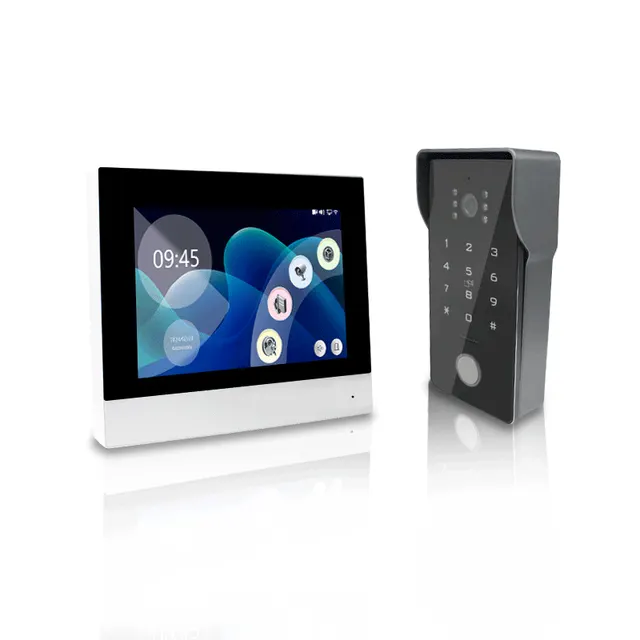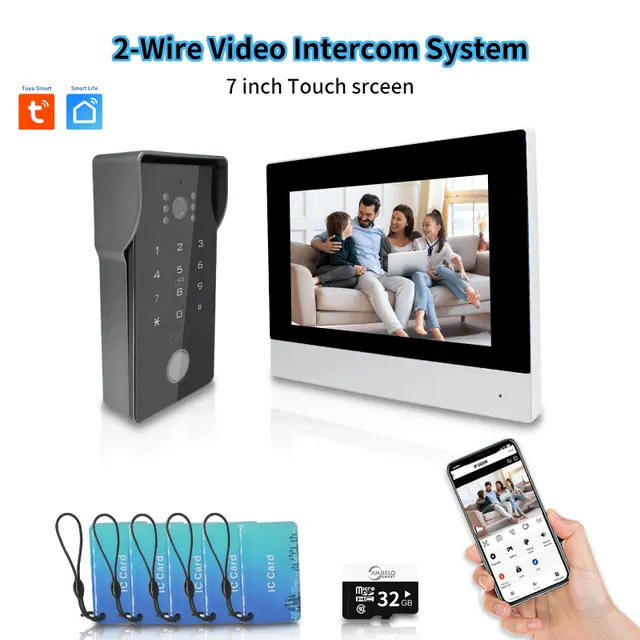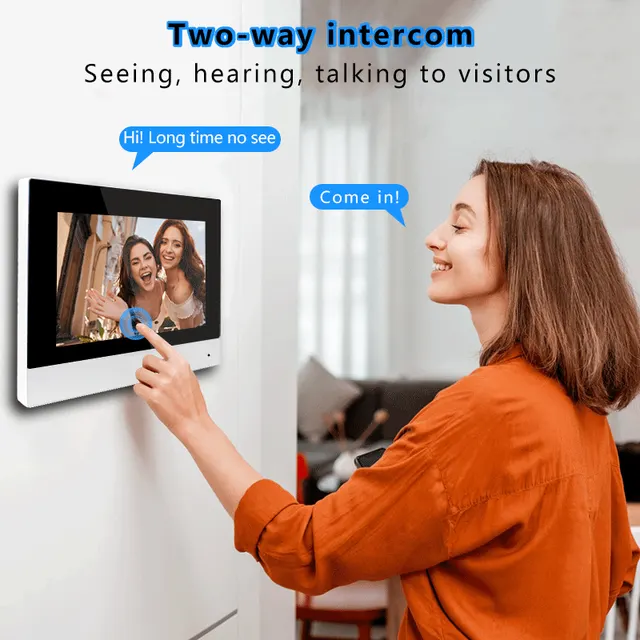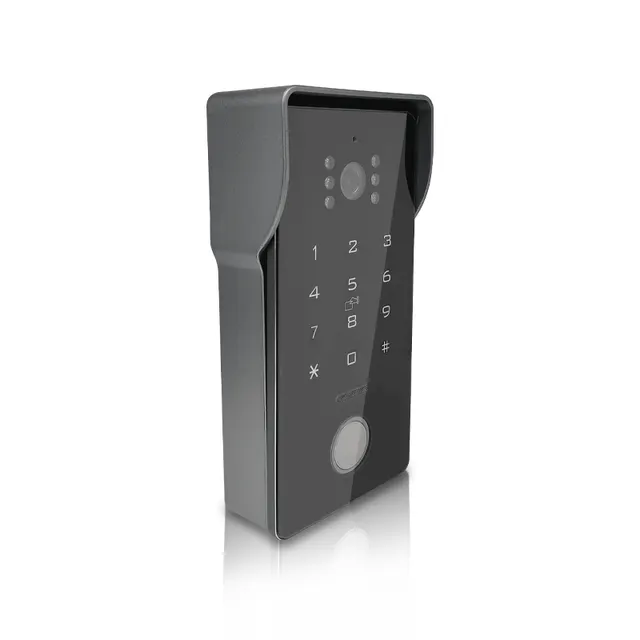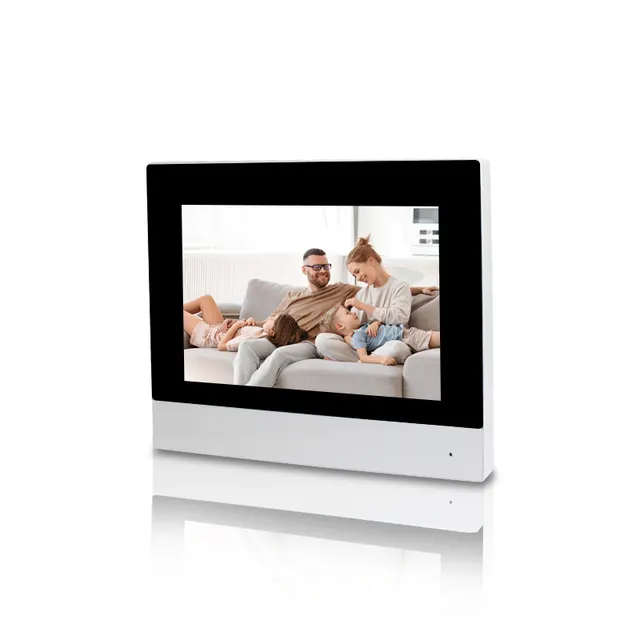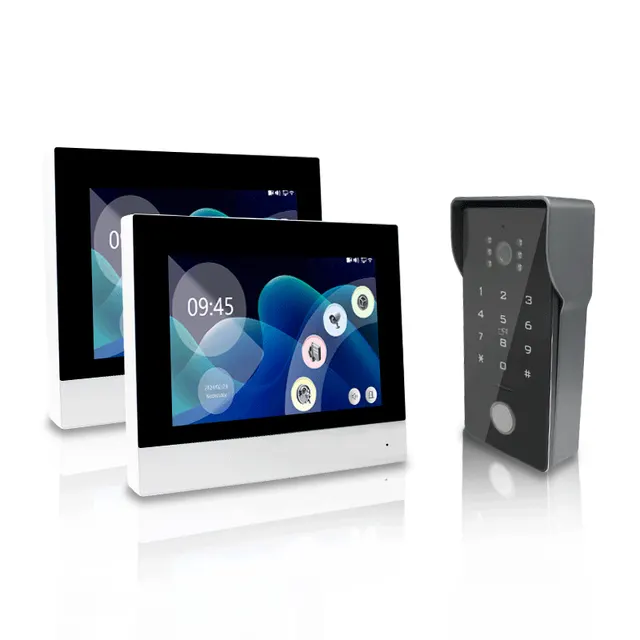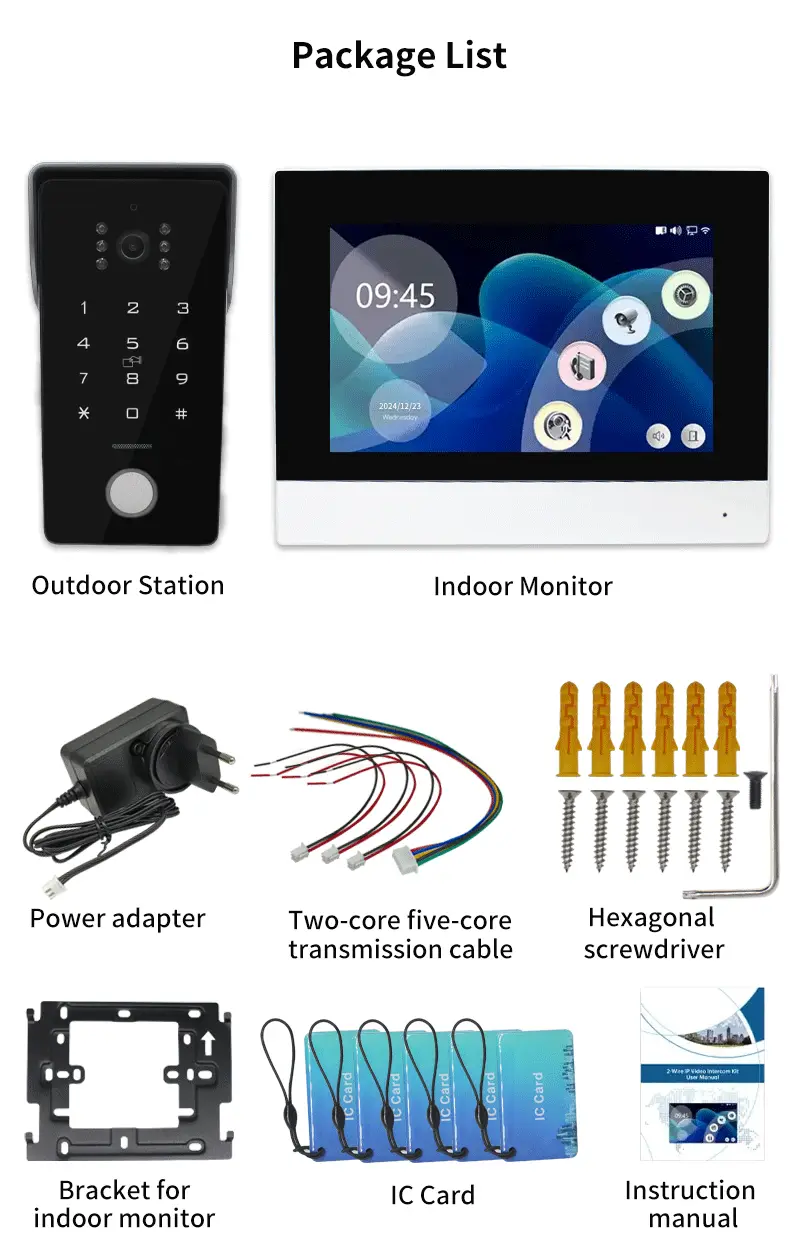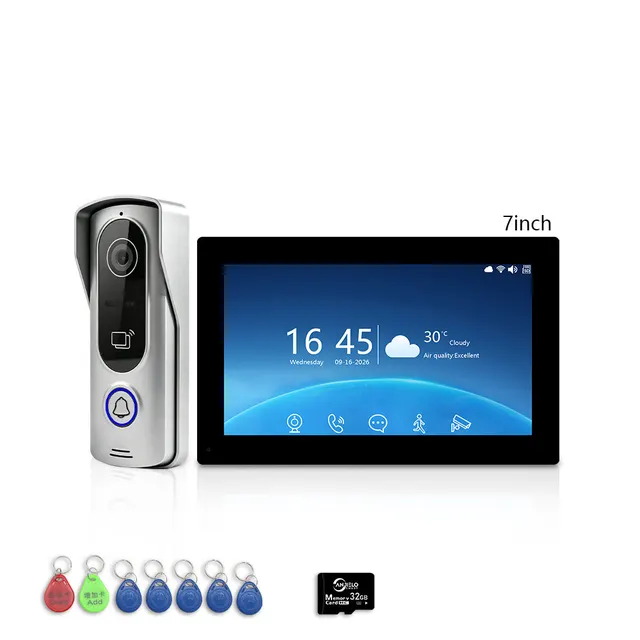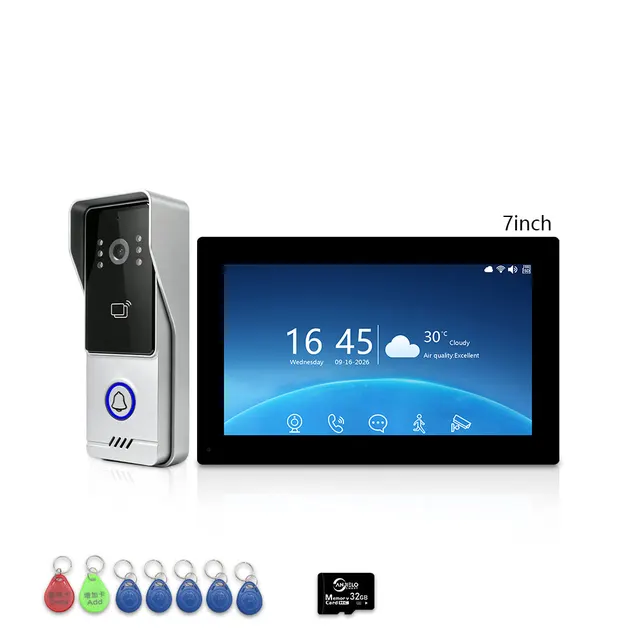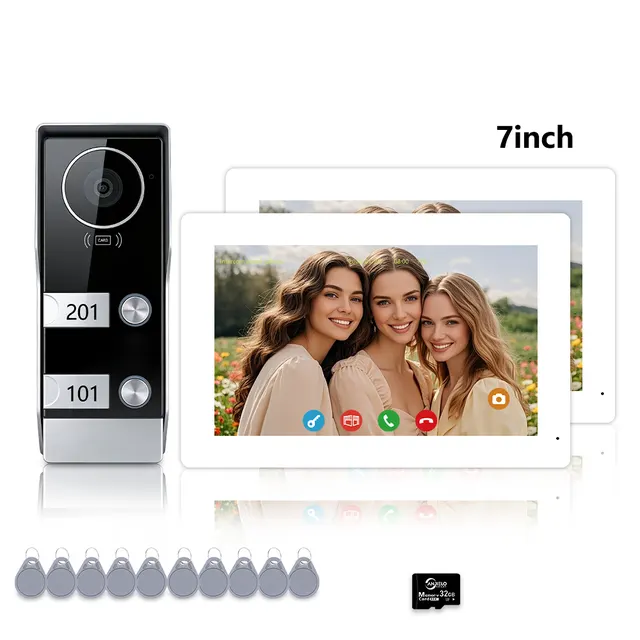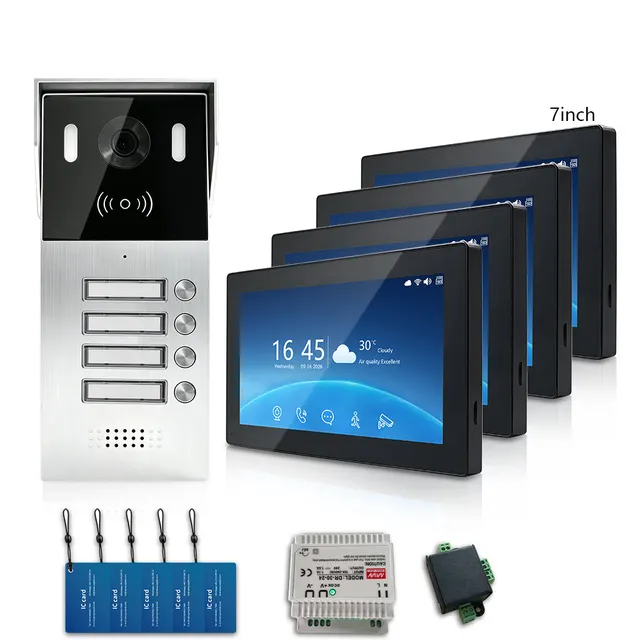
Anjielo Smart 2 Wired Video Intercom System 7" IPS LCD Screen RFID Unlock Tuya Smart Wifi Video Doorbell 1080P

$125.98

Sold out

Option
Ask about availability

Buying for a company? Request wholesale price

Specifications

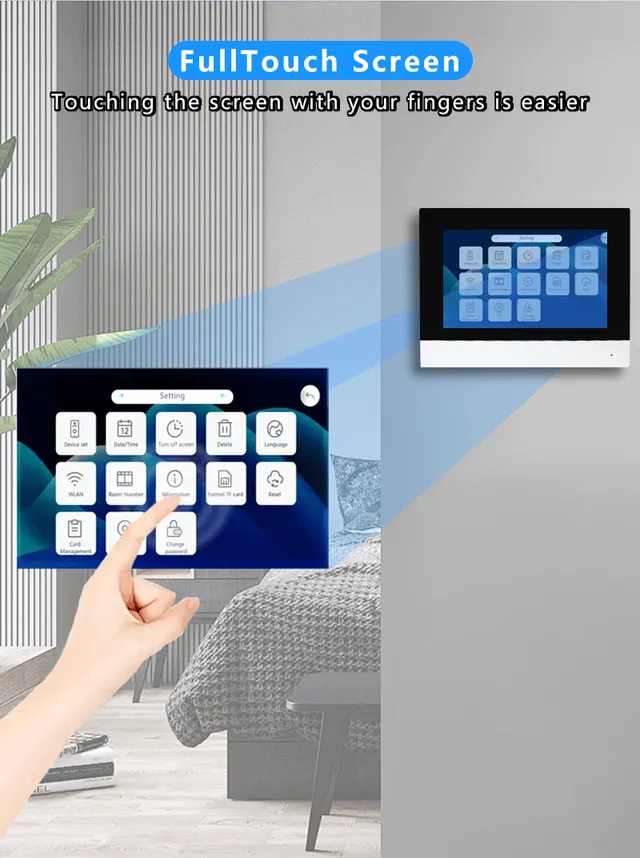
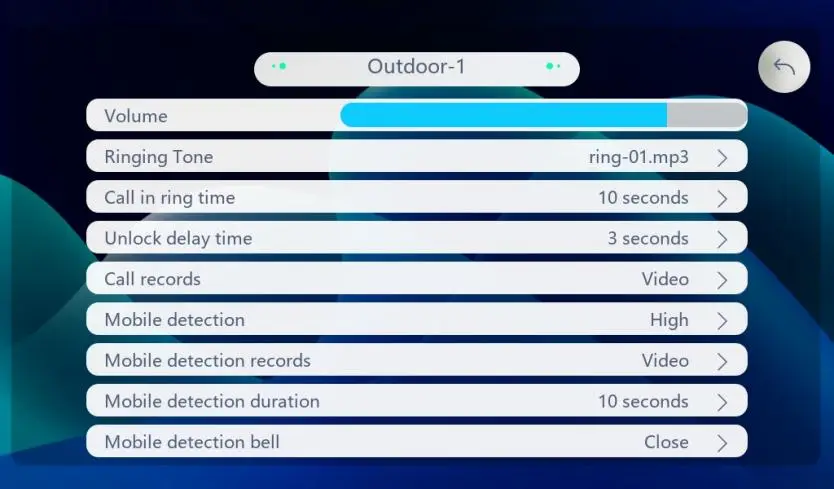
1. Device setClick and select one outdoor staBon to enter the outdoor station setting interface.
VolumeSet the indoor monitor ringtone volume.
Ringing Tone8 kinds of ringtones to choose from, click to audiBon.
Call in ring ,me1s~120s.
Unlock delay ,meSet the delay Bme of unlocking(1 s~10 s).
Call recordsSet the way to record when a visitor calls.
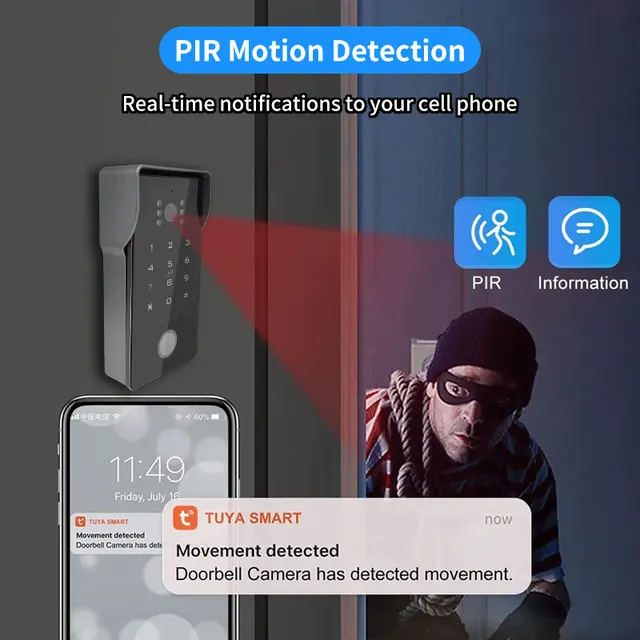
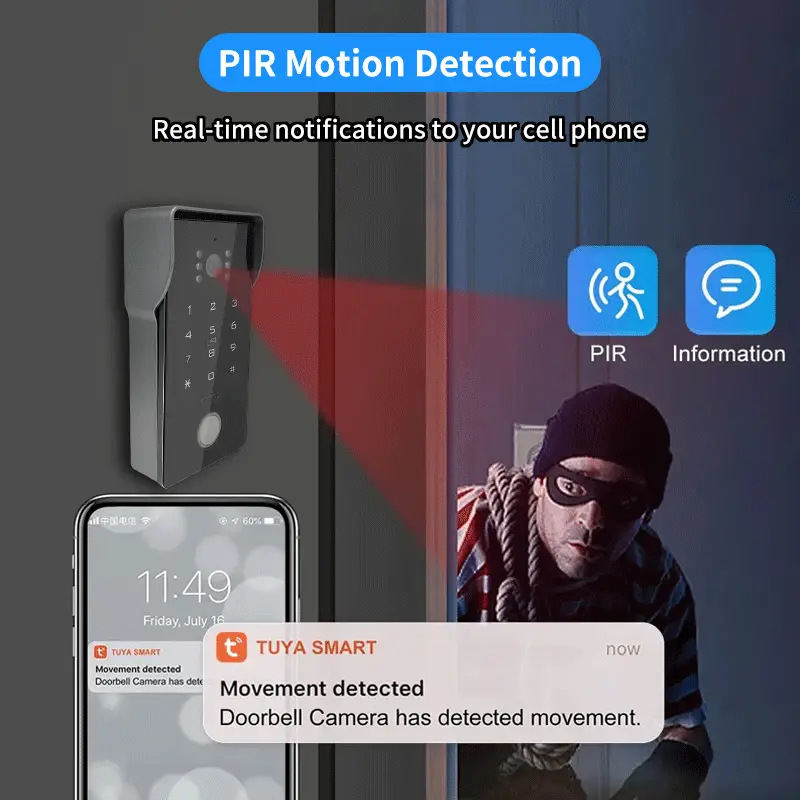
Mobile detec,onSet mobile detecBon sensiBvity (Off, Low, Medium, High).
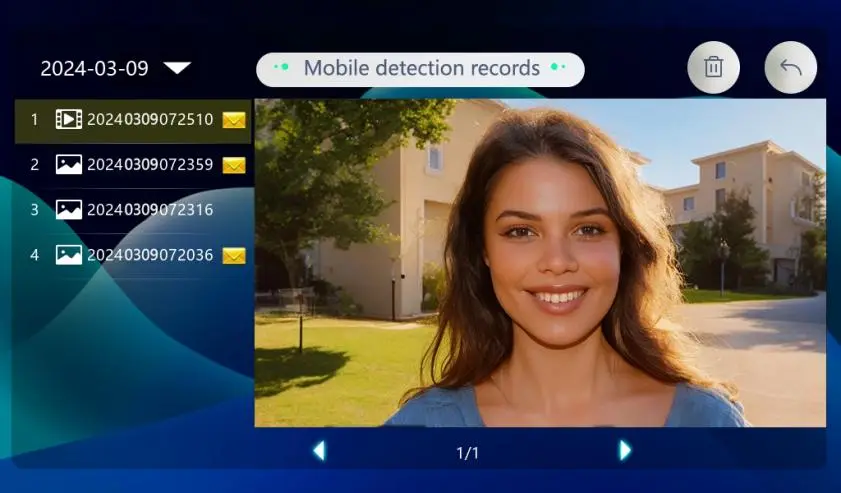
Mobile detec,on recordsSet the recording method to take photos or videos when the outdoor staBon detects someone moving.
Mobile detec,on bell8 kinds of ringtone options.
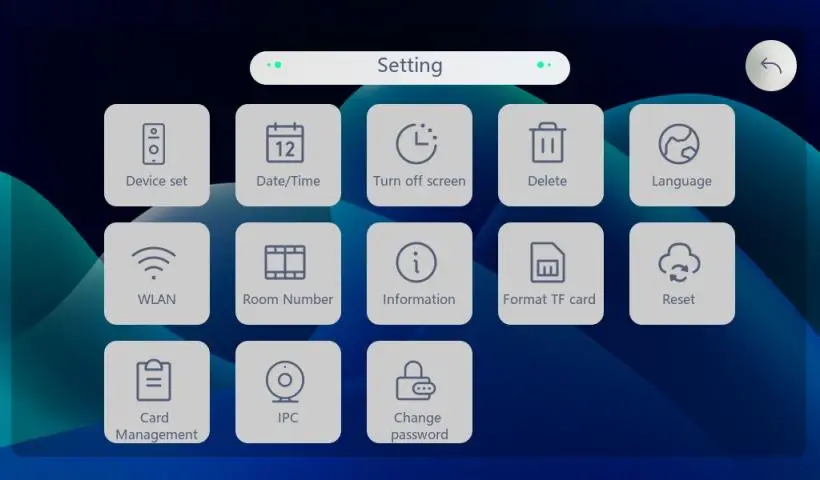
3. Turn off screenSet screen off Bme.
4. DeleteDelete photo or video history.
5. LanguagemulBple languages.
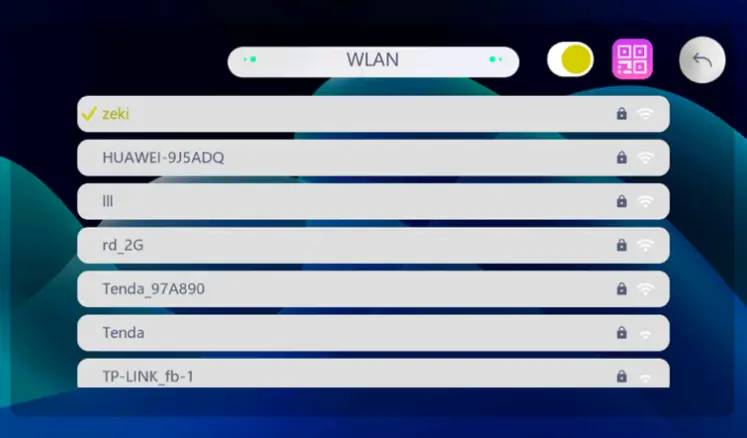
6. WLANConnect the indoor monitor to WiFi. For specific operaBons, see 4.3 Adding Devices.
7. Room NumberSwitch the host and slave room numbers.
8. InformaBonView indoor monitor informaBon, IP address, MAC
10. ResetReset to factory default.
door1 and door2Switch the outdoor station.
PhotographTake photos and record
Volume keysAdjust volume
Brightness adjustment keySet brightness, contrast, saturation
Unlock keyunlock
Answer buttonanswer
hang up buttonhang up
4. Delete Unlock PasswordPress 3 #, hear two "beeps," press # again to confirm. A single "beep" indicates success. Press * to exit setup mode.
6. Delete IC CardsPress 9 #, hear two "beeps," press # again to confirm. A single "beep" indicates success. Press * to exit setup mode.
How to create a familyClick "My - Family Management - Create Family" in
switch buttonSwitch to outdoor staBon ,switch to mute ,screen magnificaBon
2. MessageDisplays moBon detecBon alarm messages and photo
1. DeviceModify the device name and locaBon.
2. Device informaBonView IP address, device ID, signal strength and

Product details

Anjielo Smart 2 Wired Video Intercom System 7" IPS LCD Screen RFID Unlock Tuya Smart Wifi Video Doorbell 1080P

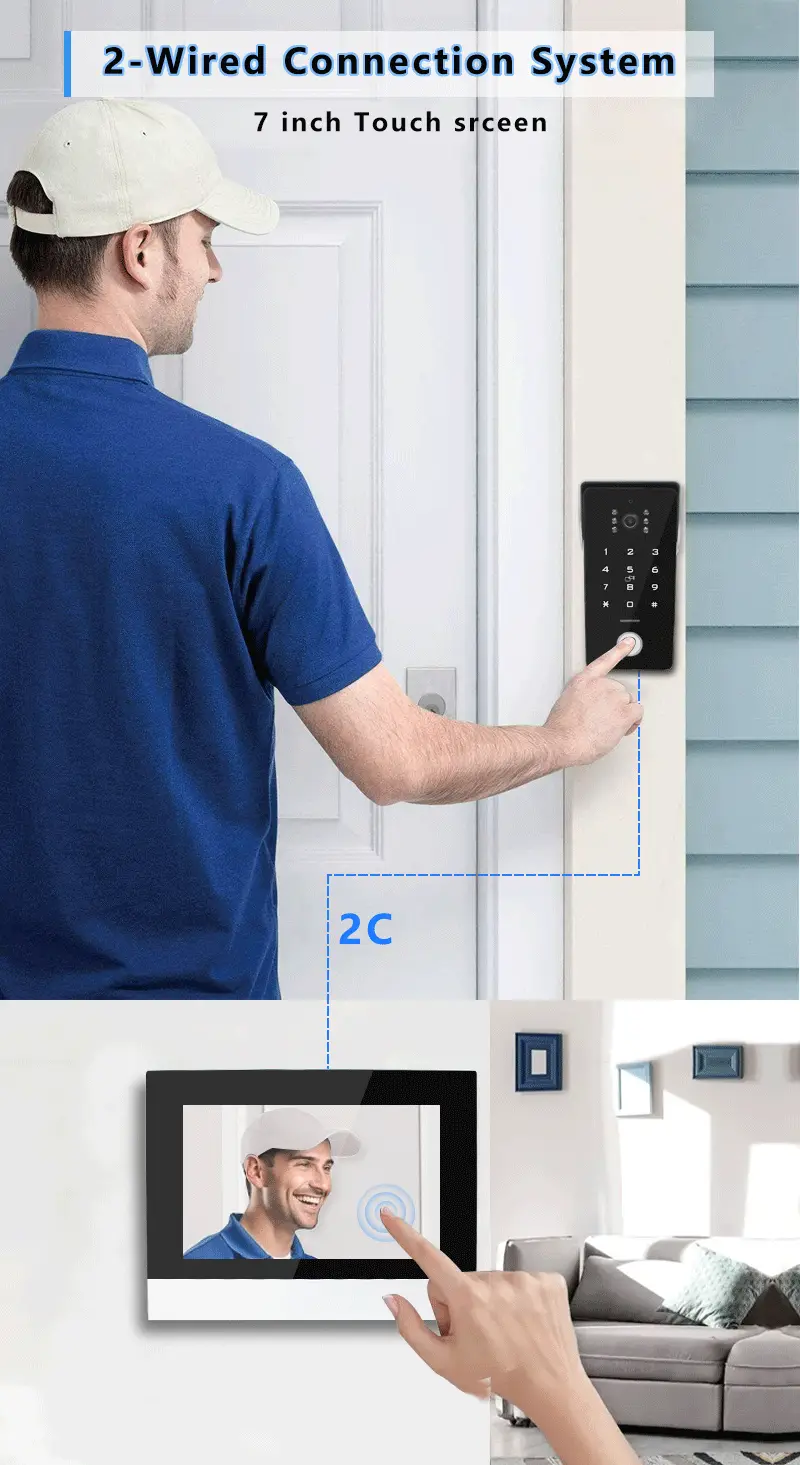
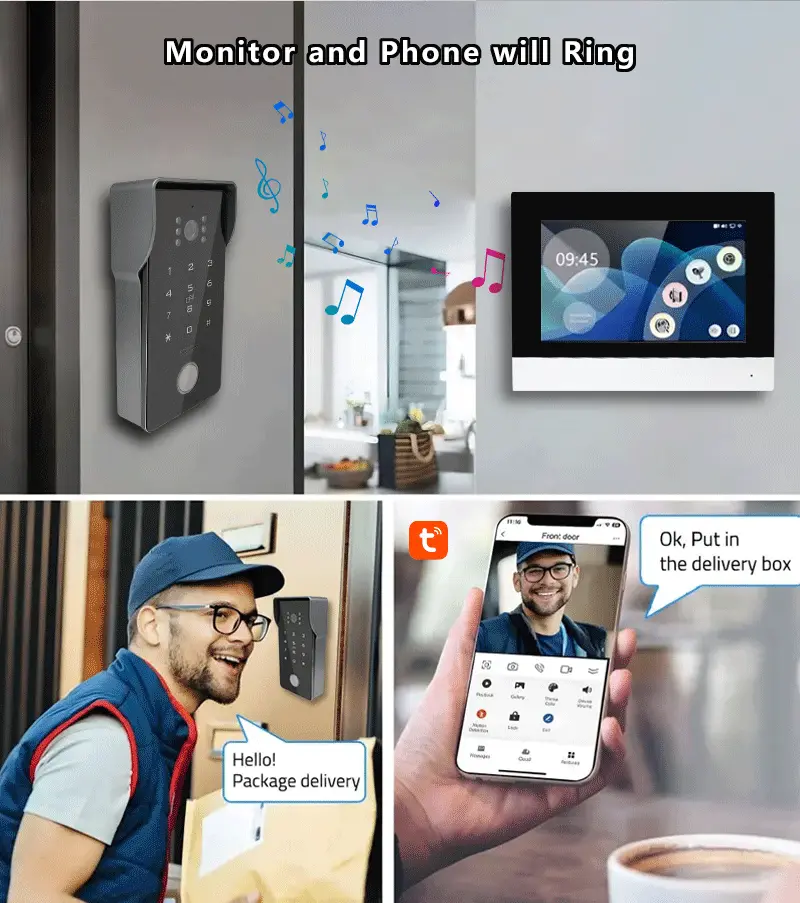
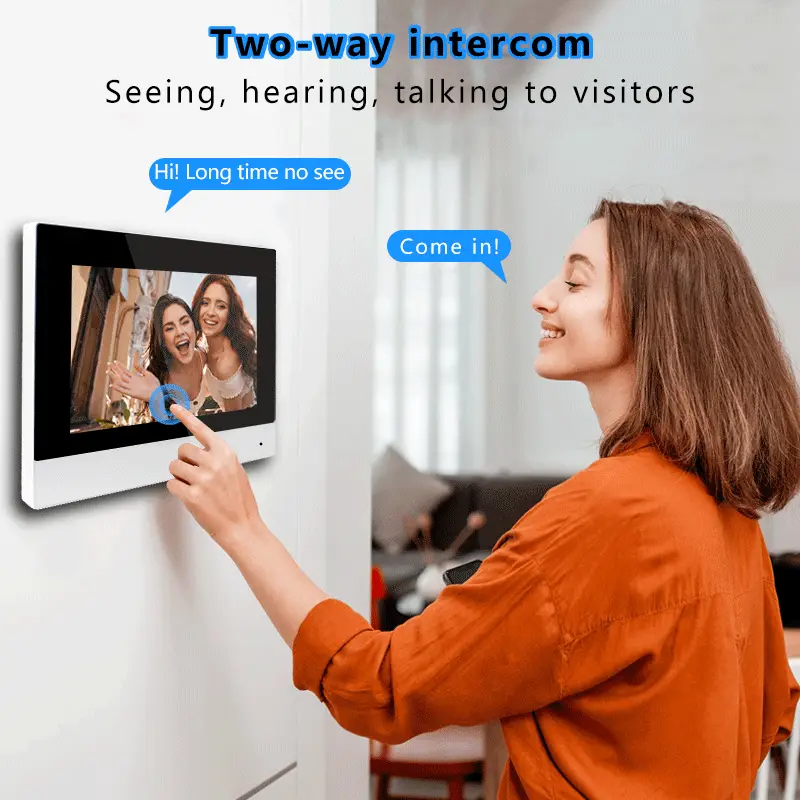
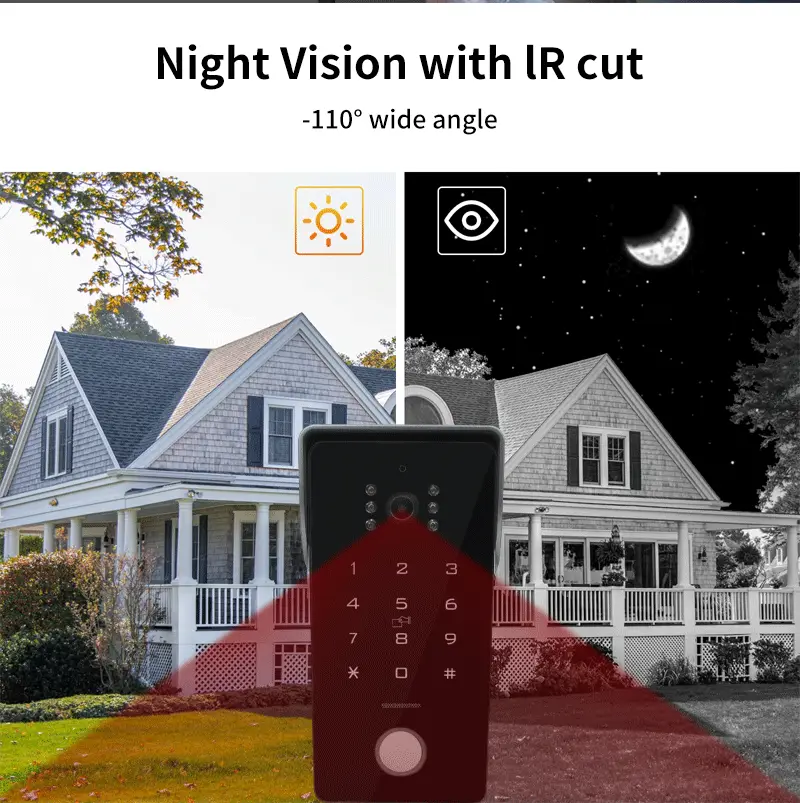
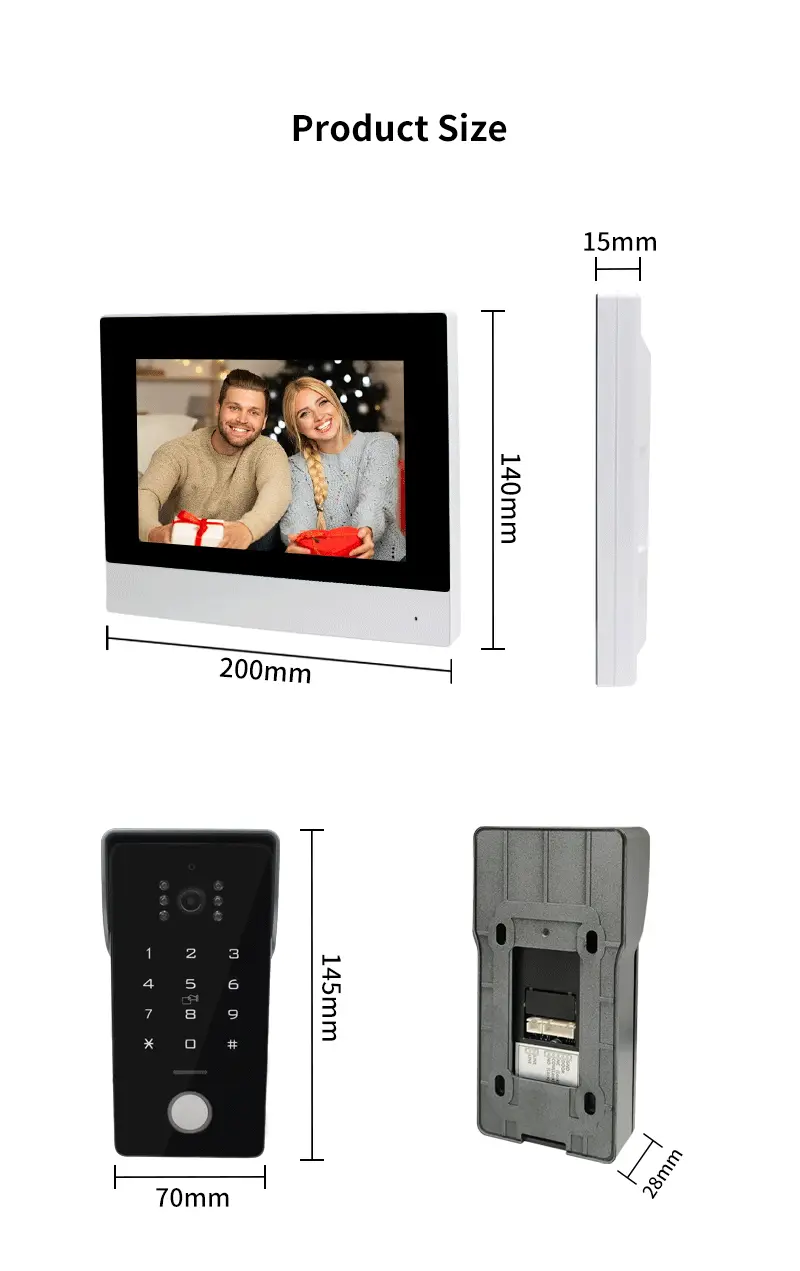
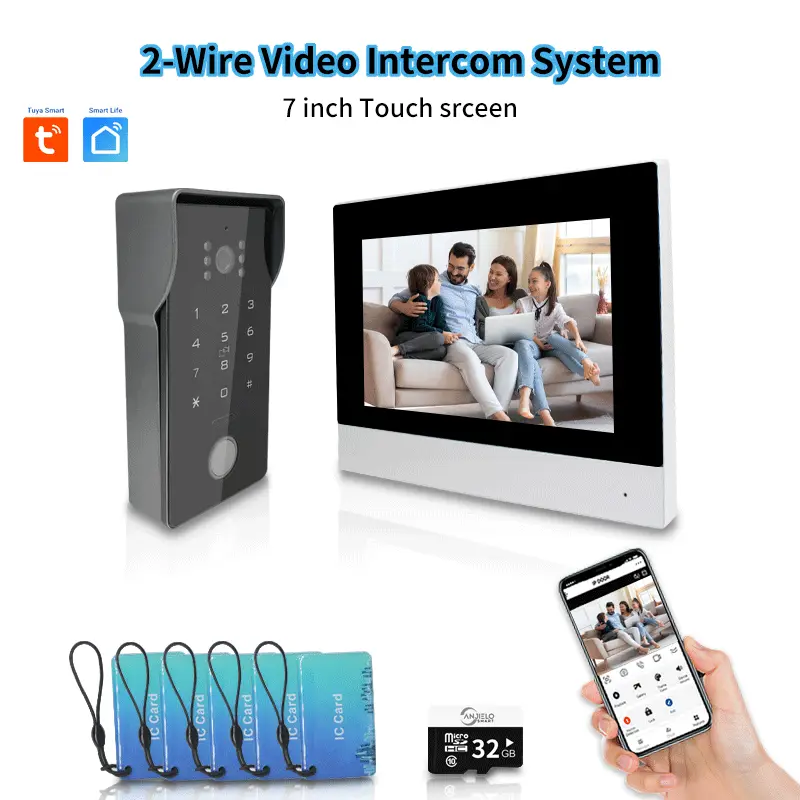
2 wired Video intercom System 7/10 inch Display video doorbell tuya wifi intercom system for villa.
Anjielo Smart 2 Wired Video Intercom System 7" IPS LCD Screen RFID Unlock Tuya Smart Wifi Video Doorbell 1080P 1

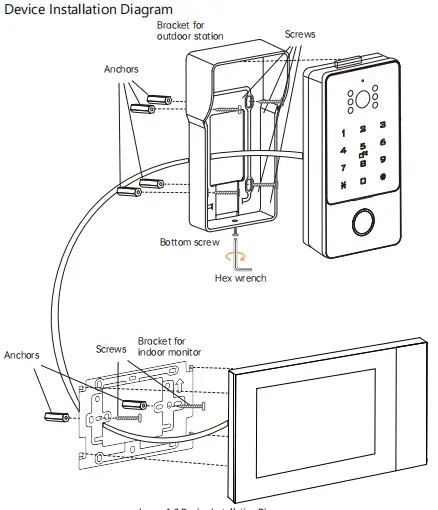
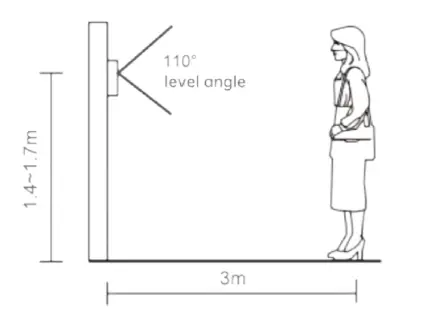
Installa-on diagram
The video intercom should be installed at a height of 1.4 to 1.7 meters above the ground. Try to avoid sun and rain. Use screws or tape to fix it on the wall, wooden board, door.
Anjielo Smart 2 Wired Video Intercom System 7" IPS LCD Screen RFID Unlock Tuya Smart Wifi Video Doorbell 1080P 2
More

Anjielo Smart 2 Wired Video Intercom System 7" IPS LCD Screen RFID Unlock Tuya Smart Wifi Video Doorbell 1080P 3

Anjielo Smart 2 Wired Video Intercom System 7" IPS LCD Screen RFID Unlock Tuya Smart Wifi Video Doorbell 1080P 4

Anjielo Smart 2 Wired Video Intercom System 7" IPS LCD Screen RFID Unlock Tuya Smart Wifi Video Doorbell 1080P 5

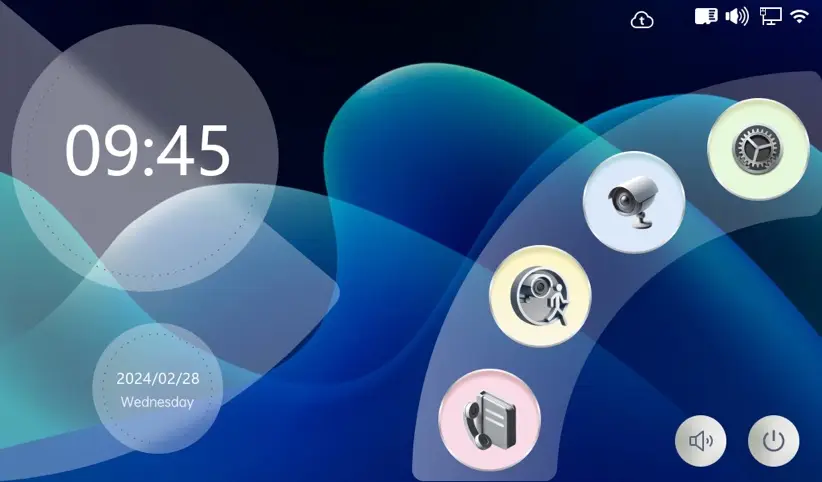
Main Interface
Anjielo Smart 2 Wired Video Intercom System 7" IPS LCD Screen RFID Unlock Tuya Smart Wifi Video Doorbell 1080P 6
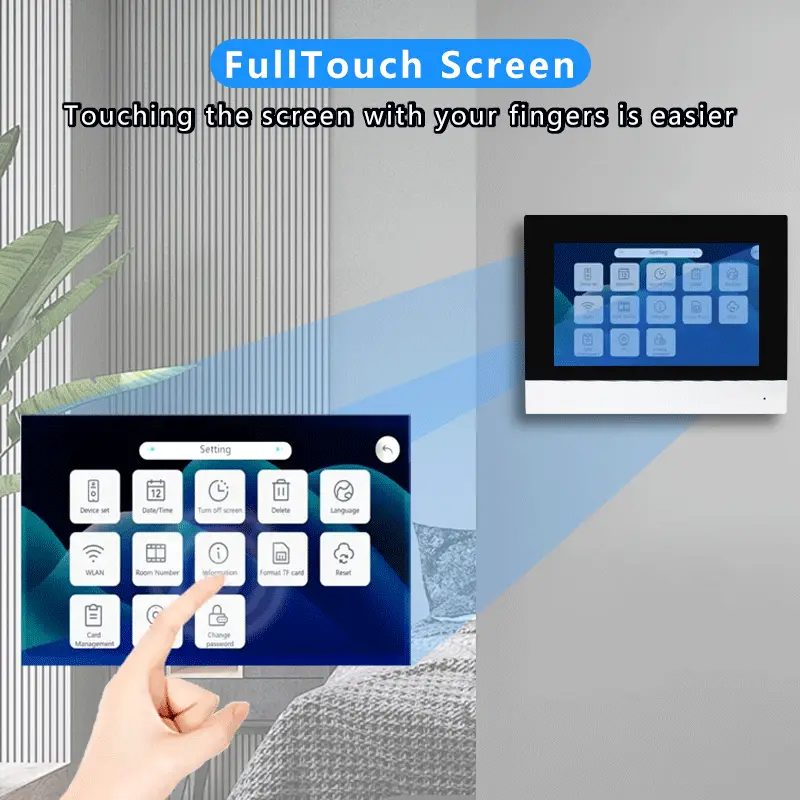
System Setting
Enter Main Interface and click setting,then enter system seNng interface.
Anjielo Smart 2 Wired Video Intercom System 7" IPS LCD Screen RFID Unlock Tuya Smart Wifi Video Doorbell 1080P 7
Anjielo Smart 2 Wired Video Intercom System 7" IPS LCD Screen RFID Unlock Tuya Smart Wifi Video Doorbell 1080P 8
Mobile detec,on dura,on: When the recording method of moBon detecBon is video recording, you can set the video recording duration here, and the selectable range is from 10 s~300 s.
2. Date/Time: Set the Bme format and modify the synchronizaBon Bme mode to automaBc or manual. In the manual Bme synchronizaBon state, you can set the Bme, date, and Bme zone.
address, UUID number , TF Card Capacity.
9. Format TF card.
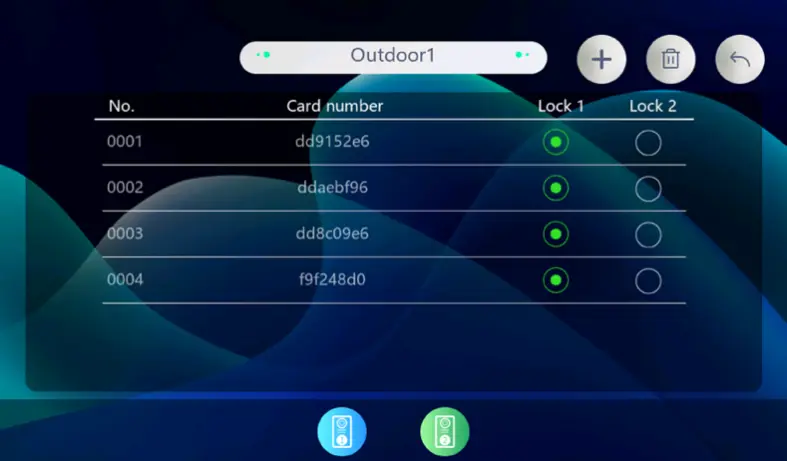
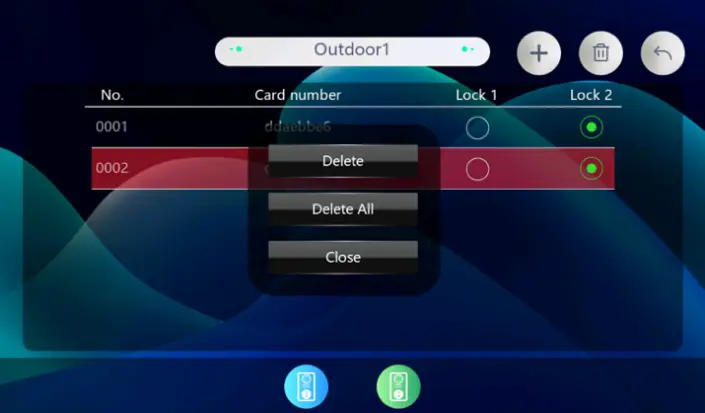
11. Card management:
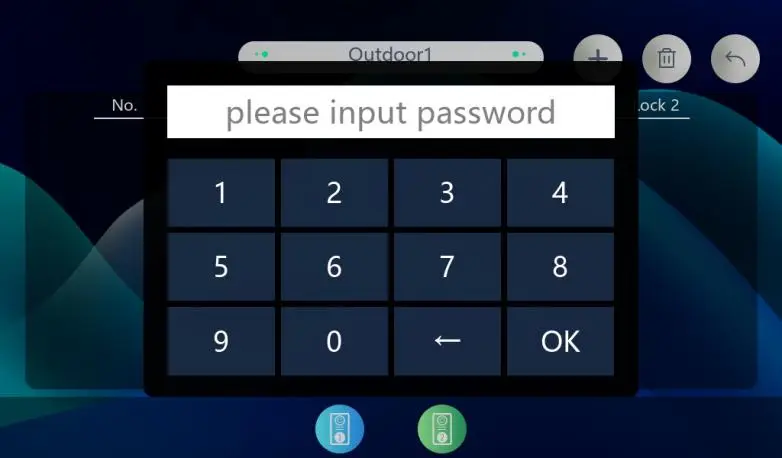
To add or delete a card, click and enter the password to proceed, "The
factory default password is '666666'."
Anjielo Smart 2 Wired Video Intercom System 7" IPS LCD Screen RFID Unlock Tuya Smart Wifi Video Doorbell 1080P 9
Anjielo Smart 2 Wired Video Intercom System 7" IPS LCD Screen RFID Unlock Tuya Smart Wifi Video Doorbell 1080P 10
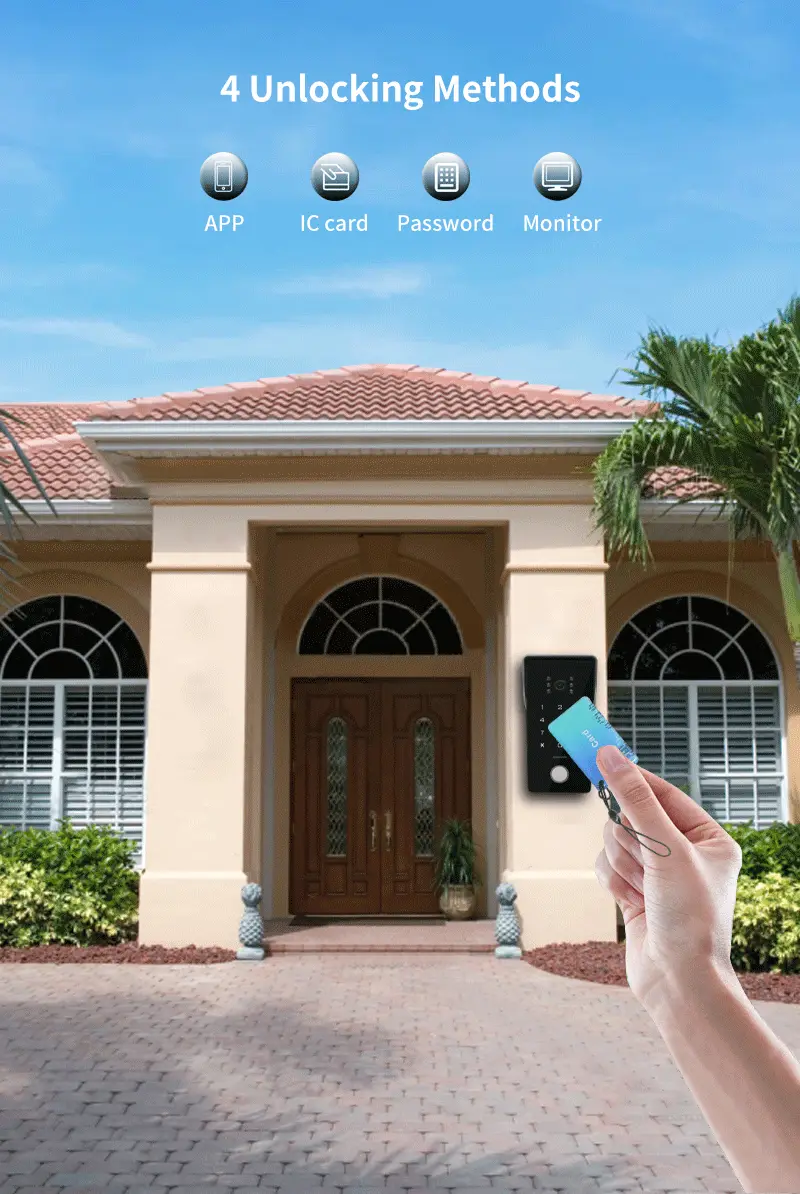
Add the card: Click the "+"to enter the card-swiping state, then add the card through the outdoor station, click the "^"to return to the card manage interface, you can view the added card.
Delete Card: Click the "delete" to enter the card-swiping state, then delete the card through the outdoor staBon, click the to return to the card manage interface, you can view the deleted card or click on the card number to be deleted.
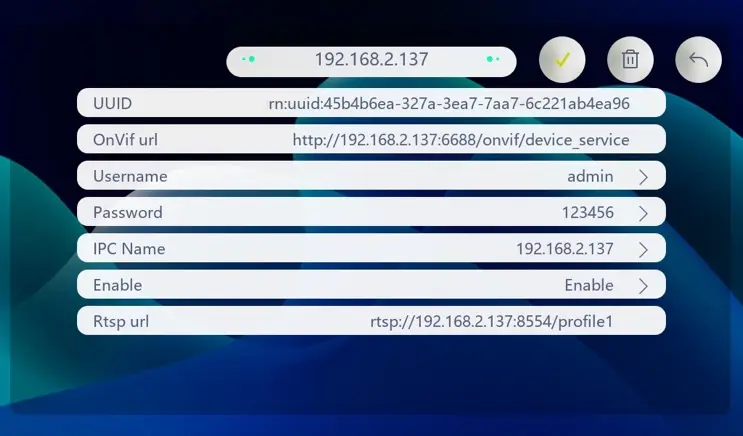
Anjielo Smart 2 Wired Video Intercom System 7" IPS LCD Screen RFID Unlock Tuya Smart Wifi Video Doorbell 1080P 1112. IPC:
Anjielo Smart 2 Wired Video Intercom System 7" IPS LCD Screen RFID Unlock Tuya Smart Wifi Video Doorbell 1080P 12
Enter the 'Username' and 'Password', select Enable, “V"and then authenBcate.
13. Change Password:
Enter 666666, press OK to confirm, then enter a new 6-digit
password. Afer reset, the password will return to the factory default:
666666.
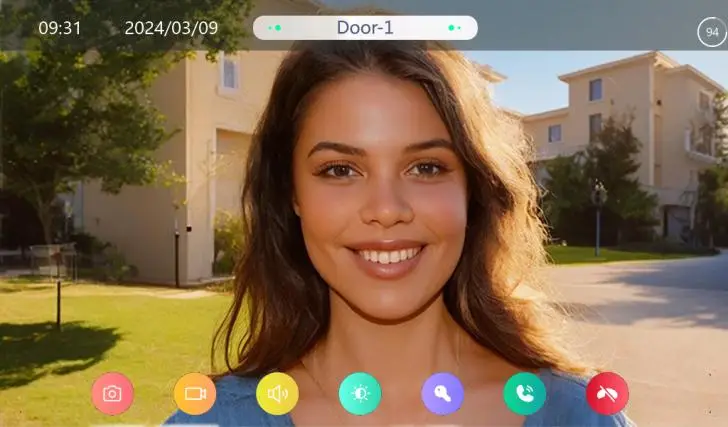
2.2 Outdoor Monitor real-time screen
Enter Main Interface and click "camera"then enter Real-Bme monitoring
Anjielo Smart 2 Wired Video Intercom System 7" IPS LCD Screen RFID Unlock Tuya Smart Wifi Video Doorbell 1080P 13
Video: Take video recording
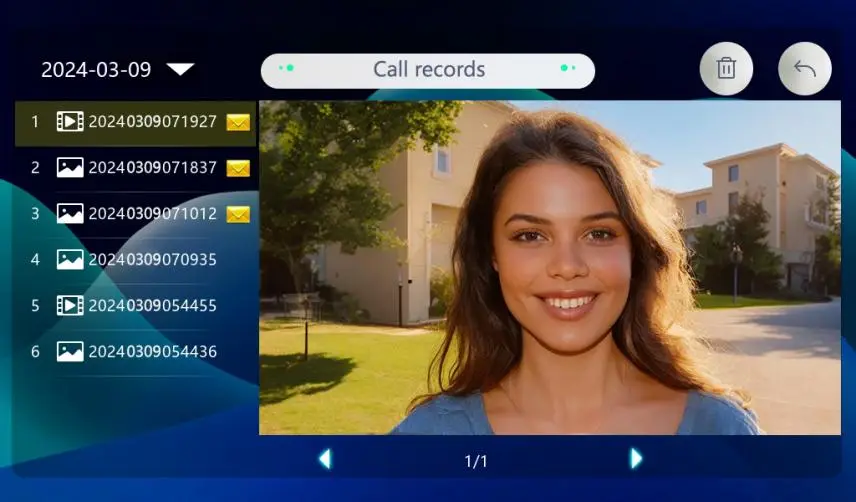
2.3 Call records
Click the ”Call records button"to view call records.
Anjielo Smart 2 Wired Video Intercom System 7" IPS LCD Screen RFID Unlock Tuya Smart Wifi Video Doorbell 1080P 14
2.4 Mobile detec-on records
Click the"Mobile detec-on button"to mobile detecBon records.
Anjielo Smart 2 Wired Video Intercom System 7" IPS LCD Screen RFID Unlock Tuya Smart Wifi Video Doorbell 1080P 15
3.Outdoor Station Password Keypad User Manual
Press any key to light up the keypad, entering input mode. A "beep" sound indicates a valid key press. Press "#" to confirm; four "beeps" indicate an error or failed setup. Press "*" during input for four "beeps" to exit input mode. Afer 30 seconds of inacBvity, the system automaBcally exits with three "beeps." Factory default admin password: 666666, Factory default unlock password: 666666
1. Enter Setup Mode: Press # 666666 #. A single "beep" confirms entry into setup mode. The default admin password is 666666. It is recommended to change the admin password and remember the new one. All subsequent operaBons must be performed in setup mode.
2. Change Admin Password: Press 5 #, hear two "beeps," enter a new 6- digit admin password, and press # to confirm. A single "beep" indicates success. Press * to exit setup mode.
3. Change Unlock Password: Press 1 #, hear two "beeps," enter a new 6- digit unlock password, and press # to confirm. A single "beep" indicates success. Press * to exit setup mode.
5. Add IC Cards: Press 7 #, hear two "beeps," then add IC cards to the recogniBon area within 30 seconds. Press # to confirm. A single "beep" indicates success. Press * to exit setup mode.
7. Restore Factory SeMngs: Press 4 #, hear two "beeps," press # again to confirm. A single "beep" indicates success. The admin password will reset to 666666, and the unlock password will reset to 666666.
4.Tuya APP remote control
4.1 Download and install Tuya APP
1. Search and download "Tuya Smart" or "Smart Life" in the mobile app store.
2. Scan the QR code below to download the APP
4.2 Account registra-on and login
1. Please click to register if you are using "Tuya Smart" or "Smart Life"
APP for the first Bme.
2. If you have already registered an account, you can log in directly
through your mobile phone number or authorize your login through your
WeChat account or Apple ID
3. In order to ensure the normal use of APP funcBons, please allow and
open all permissions of APP before use.
4. Afer logging in the APP, you can choose to create a family first and
then add devices.
the lower right corner of the homepage, fill in the informaBon and save it.
The seler will automaBcally become the family owner and can set up
administrators and ordinary members. When a family owner or
administrator adds a device, family members will automaBcally add the
device.
5. "Tuya Smart" or "Smart Life" is a large plamorm that can add mulBple
categories of smart products. Compared with the shared account, all
family members who add this device have more unlocking funcBons; up to
20 administrators and family members can be added to a single family.
6. The video intercom is the device with a high security level. The device
must be removed from the original account before it can be bound to a
new account.
4.3 Add Devices
1. The indoor monitor is connected to WiFi.
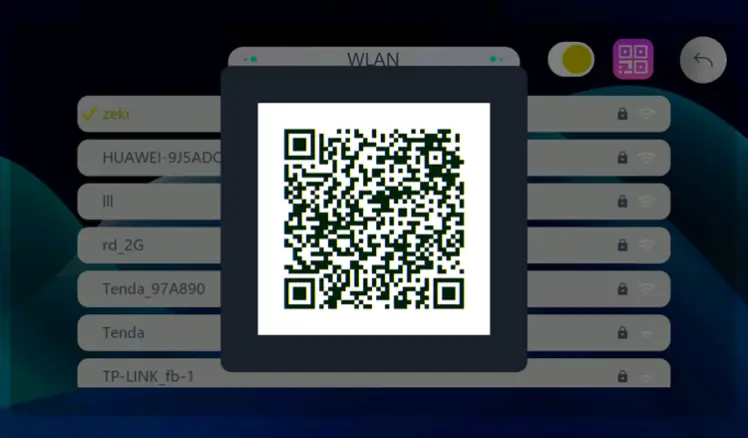
To configure the network for the indoor monitor, click [Settins] — [WLAN] on the main interface to enter the network configuraBon interface. It will prompt "WiFi connecBon successful", indicaBng that the indoor monitor is successfully connected to the Internet and the device QR code is displayed in the upper right corner.
Anjielo Smart 2 Wired Video Intercom System 7" IPS LCD Screen RFID Unlock Tuya Smart Wifi Video Doorbell 1080P 16
Anjielo Smart 2 Wired Video Intercom System 7" IPS LCD Screen RFID Unlock Tuya Smart Wifi Video Doorbell 1080P 17
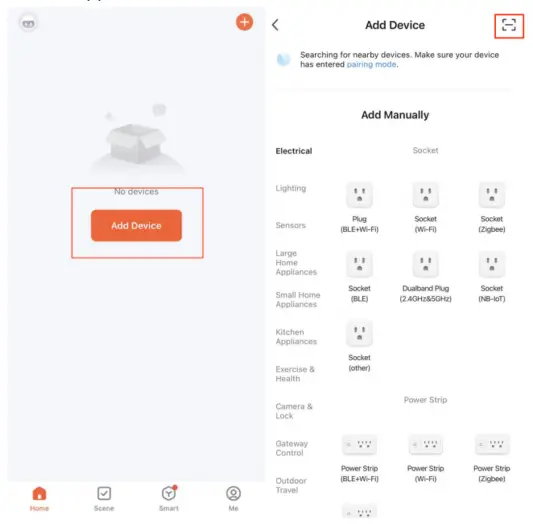
2. Open the Tuya app and click [Add Device].
3. Click on the upper right corner to scan the QR code of the device in
the indoor unit [WLAN] .
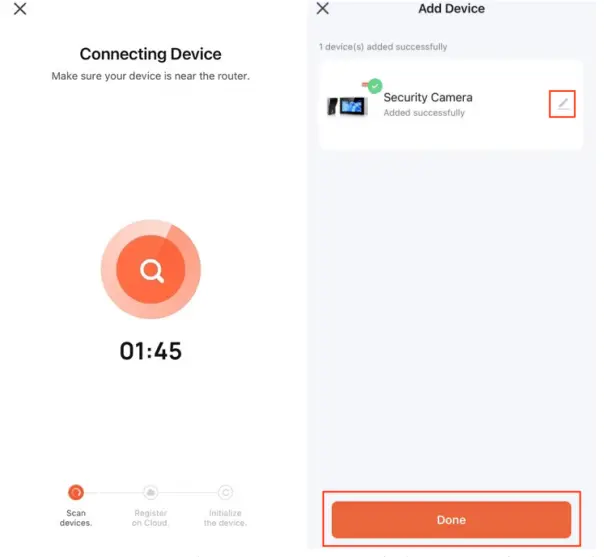
4. When the search is completed, click [Add].You need to wait for a while
during the process of adding equipment.
5. The device name can be customized.
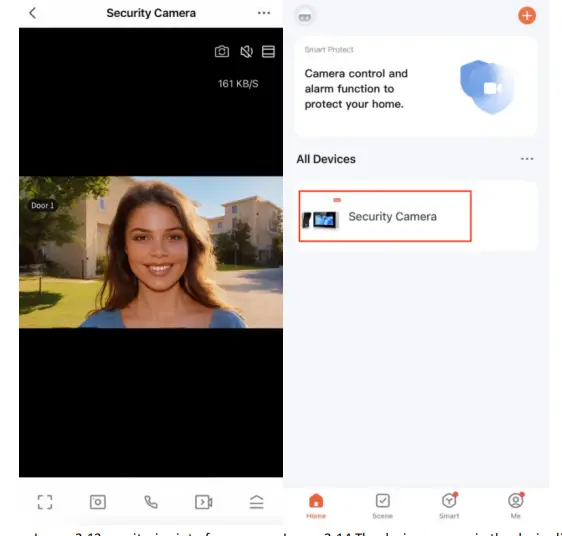
6. Click Add to complete and enter the monitoring interface.
7. The device appears in the device list.
Anjielo Smart 2 Wired Video Intercom System 7" IPS LCD Screen RFID Unlock Tuya Smart Wifi Video Doorbell 1080P 18
Anjielo Smart 2 Wired Video Intercom System 7" IPS LCD Screen RFID Unlock Tuya Smart Wifi Video Doorbell 1080P 19
Anjielo Smart 2 Wired Video Intercom System 7" IPS LCD Screen RFID Unlock Tuya Smart Wifi Video Doorbell 1080P 20
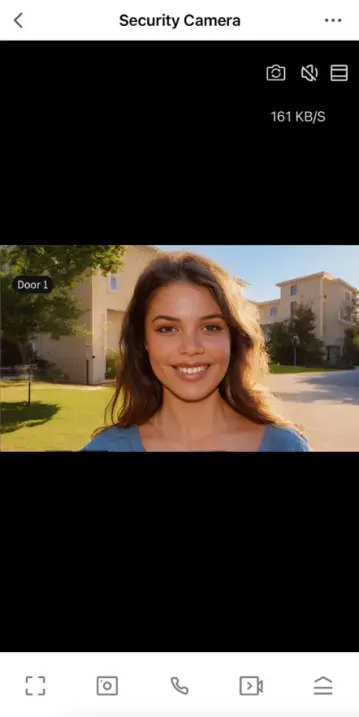
4.4 View real--me pictures
Click the device to enter the real-Bme screen, you can switch to outdoor
staBon, mute, screen magnificaBon, floaBng window operaBon, photo,
intercom, video, unlock, playback, photo album, switch theme color, click
the upper right corner to make more seNngs.
Anjielo Smart 2 Wired Video Intercom System 7" IPS LCD Screen RFID Unlock Tuya Smart Wifi Video Doorbell 1080P 21
records when someone rings the doorbell.
3. FuncBon:
Playback:
Click for real-Bme screen playback
Photo Album:
Store photos and videos.
Theme color matching:
Provides two theme colors, bright mode and dark mode, for users to
choose from.
Mo,on detec,on:
can detect moving objects near the camera and generate alarm
informaBon.
Lock:
The lock can be unlocked remotely and a record of the unlocking Bme
can be generated.
Edit:
Manage interface funcBon keys and home device shortcut keys.
Anjielo Smart 2 Wired Video Intercom System 7" IPS LCD Screen RFID Unlock Tuya Smart Wifi Video Doorbell 1080P 22
device Bme zone.
3. "One-click execuBon" and "automaBon": You can create intelligent
scenes in "Scenes". Afer seNng the "automaBon" scene, the device can
be automaBcally controlled for you, saving trouble and worry; afer seNng
the "one-click execuBon" scene, in Manually click to control the device in
the APP, which is fast and convenient.
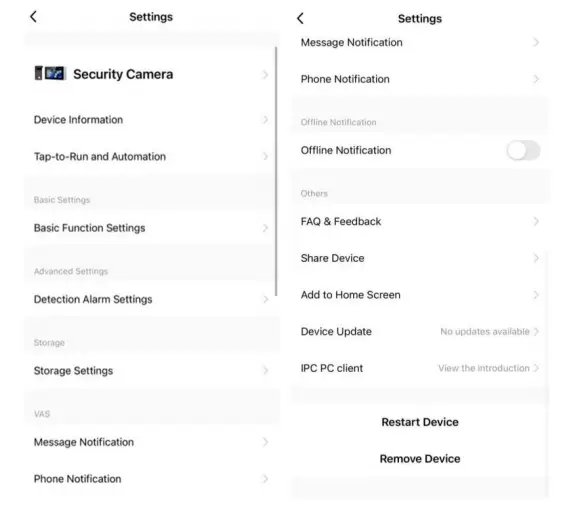
4. Basic funcBon seNngs: control the status indicator light switch of the
door staBon, whether the screen is flipped, and add Bme watermark.
5. DetecBon alarm seNng: MoBon detecBon alarm switch, afer turning it
on, you can set the alarm sensiBvity (low, medium, high); you can also set
the alarm Bme period.
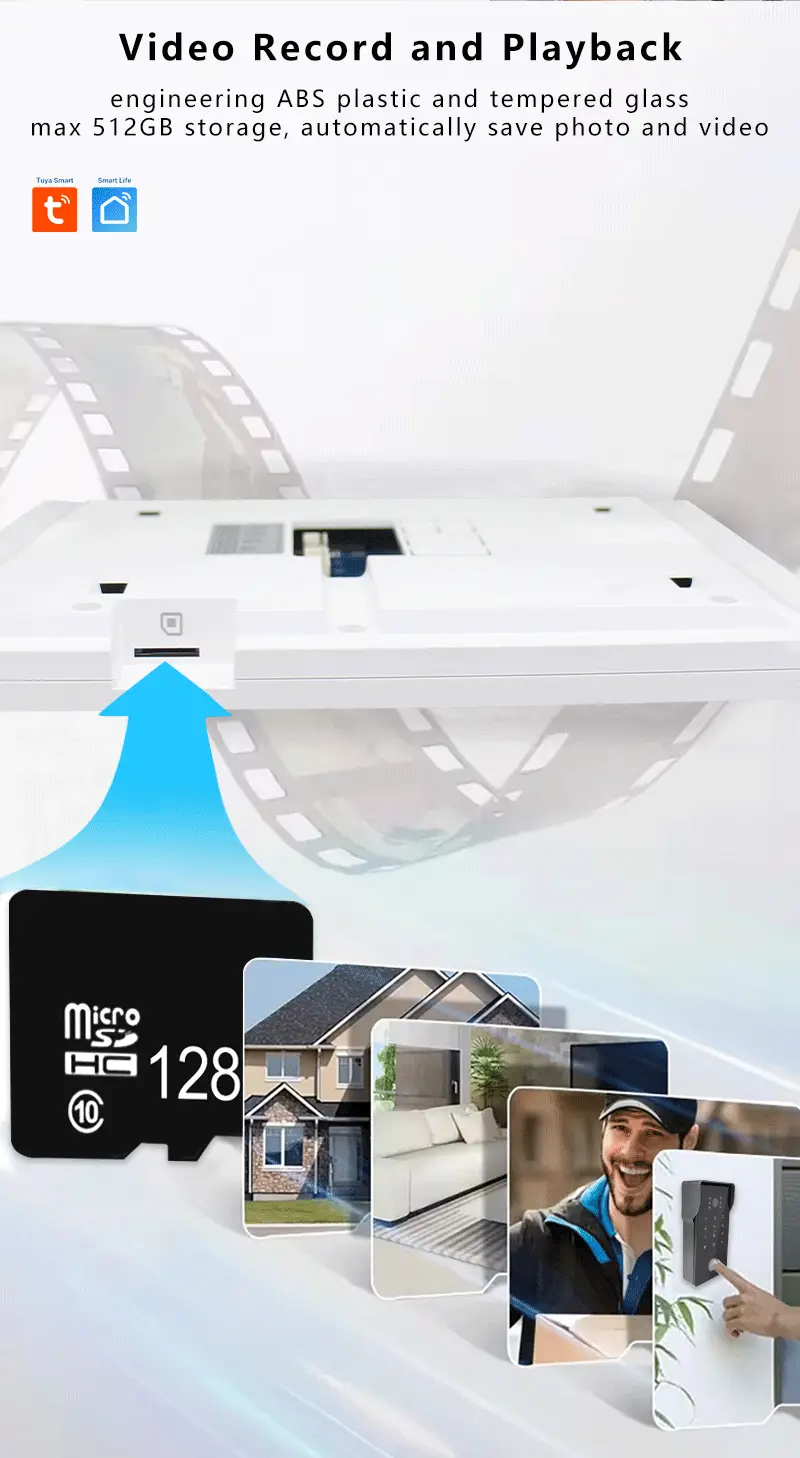
6.Storage seNngs: View the capacity, used capacity, and remaining
capacity of the memory card; you can also format the memory card.
7. Value-added services: Afer acBvaBng the rights, you can add phone
and text message noBficaBons through APP scene automaBon or message
center - alarm management. When your scene automaBon is successfully
executed or an alarm occurs on the device, you will be noBfied via phone
calls and text messages. Important No messages are missed, and your
devices and home are protected in real Bme.
8. Offline reminder: The alarm message list will be pushed to the APP afer
the device is offline for more than 30 minutes (low-power devices will
trigger a reminder afer more than 8 hours).
9. Others:
Frequently Asked Ques,ons and Feedback:
You can view some frequently asked quesBons to quickly provide
help to users who are unfamiliar with the product or sofware
operaBon.
Share device:
Enter the mobile phone number or email address of the user you
want to share with, and click "Finish"; or enter the number of people
you want to share with and then select the sharing method to share;
you can also directly copy the device informaBon and share it with
others. It should be noted that shared users cannot unlock. The
unlocking user must be a family member. Members added in family
management have full permissions on the menu.
Add to desktop:
You can add the device to the desktop.
Device upgrade:
Check the current software version; you can turn on the automatic
upgrade function, and the device will automatically upgrade, but
important function upgrades still need to be confirmed.
PC computer client:
View the introducBon of IPC workstaBon. (Visit
hlps://protect.ismartlife.me with Chrome browser on the computer,
and use the mobile APP to scan the QR code to log in)
10. Restart the device: Restart the device.
11. Remove the device: After this account removes the device, other
accounts or mobile phones can connect to the device.
4.5 Calling and remote unlocking
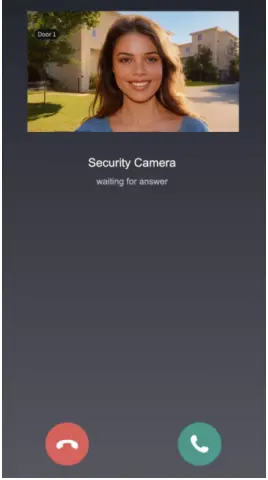
1. When a visitor presses the doorbell, it will be pushed online:
Anjielo Smart 2 Wired Video Intercom System 7" IPS LCD Screen RFID Unlock Tuya Smart Wifi Video Doorbell 1080P 23
Click to answer or hang up. Afer answering, the real-Bme screen will be
entered. Users can perform intercom, take photos, video, remotely unlock
and other operaBons.
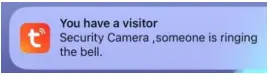
2. The mobile phone’s standby status is pushed as follows:
Anjielo Smart 2 Wired Video Intercom System 7" IPS LCD Screen RFID Unlock Tuya Smart Wifi Video Doorbell 1080P 24
Click on the push message to enter the real-Bme screen, and users can
perform operaBons such as intercom, photo taking, video recording, and
remote unlocking.
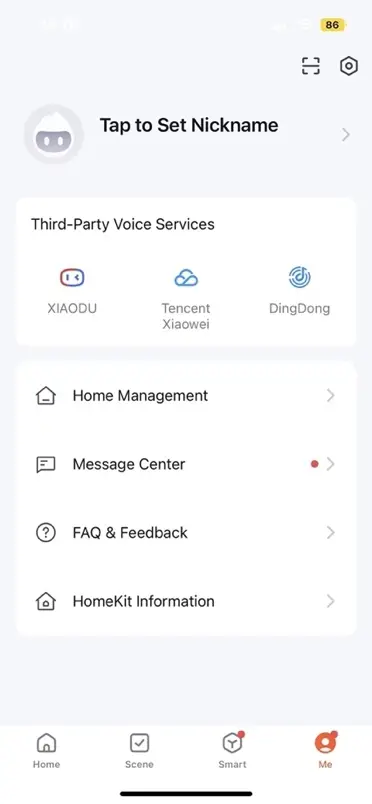
4.6 Help and Service
Tuya has many smart products, you can click [My] to enter service and
help.
1. "Voice third-party service", you can choose mulBple intelligent voice
control products, and each third-party product has detailed connecBon
tutorials.
2. "Family Management" can create a new family or join a family and set
permissions.
3. "Message Center" can view alarm informaBon, family informaBon and
related noBficaBons.
4. You can familiarize yourself with APP usage and device operaBon by
viewing "Help and Feedback".
Anjielo Smart 2 Wired Video Intercom System 7" IPS LCD Screen RFID Unlock Tuya Smart Wifi Video Doorbell 1080P 25

Anjielo Smart 2 Wired Video Intercom System 7" IPS LCD Screen RFID Unlock Tuya Smart Wifi Video Doorbell 1080P 26

Anjielo Smart 2 Wired Video Intercom System 7" IPS LCD Screen RFID Unlock Tuya Smart Wifi Video Doorbell 1080P 27

Anjielo Smart 2 Wired Video Intercom System 7" IPS LCD Screen RFID Unlock Tuya Smart Wifi Video Doorbell 1080P 28

Anjielo Smart 2 Wired Video Intercom System 7" IPS LCD Screen RFID Unlock Tuya Smart Wifi Video Doorbell 1080P 29

Anjielo Smart 2 Wired Video Intercom System 7" IPS LCD Screen RFID Unlock Tuya Smart Wifi Video Doorbell 1080P 30

Anjielo Smart 2 Wired Video Intercom System 7" IPS LCD Screen RFID Unlock Tuya Smart Wifi Video Doorbell 1080P 31

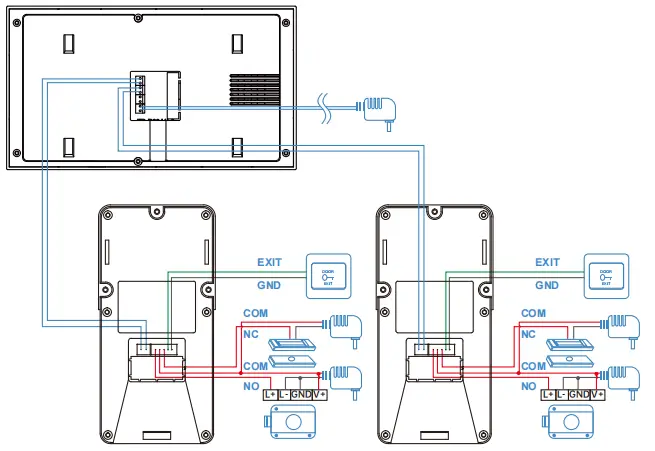
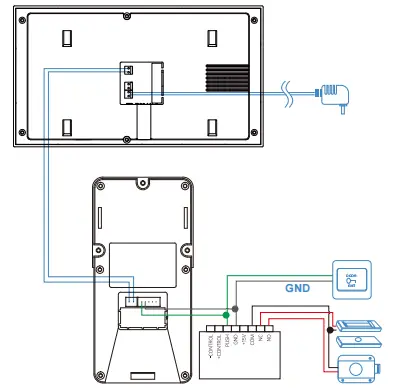
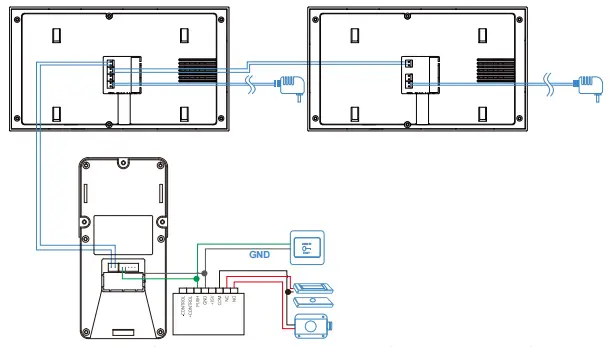
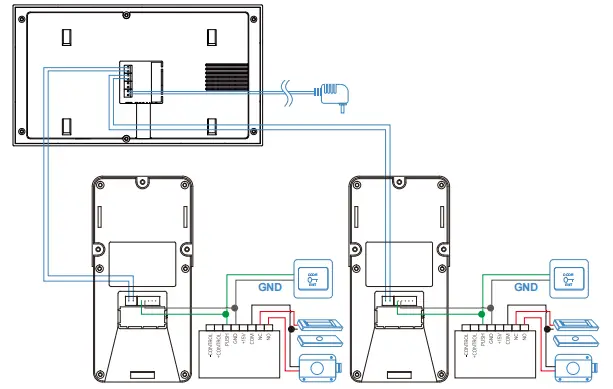
2-Wire IP Video Intercom Device Installation Diagram

Anjielo Smart 2 Wired Video Intercom System 7" IPS LCD Screen RFID Unlock Tuya Smart Wifi Video Doorbell 1080P 32

Avoiding harsh environments: The visitor (Outdoor StaBon) intercom system should not be installed in areas exposed to direct sunlight, high temperatures, rain, snow, chemical corrosion, excessive humidity, or excessive dust.
Connect the Outdoor sta-on and indoor Monitor
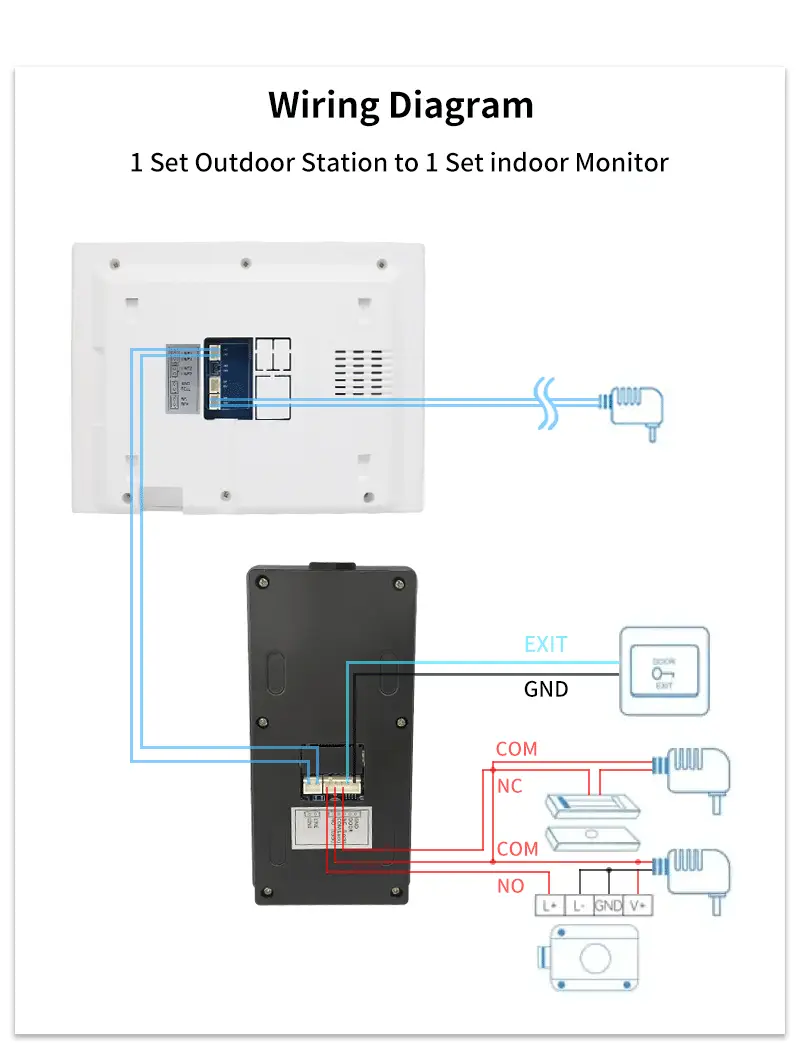
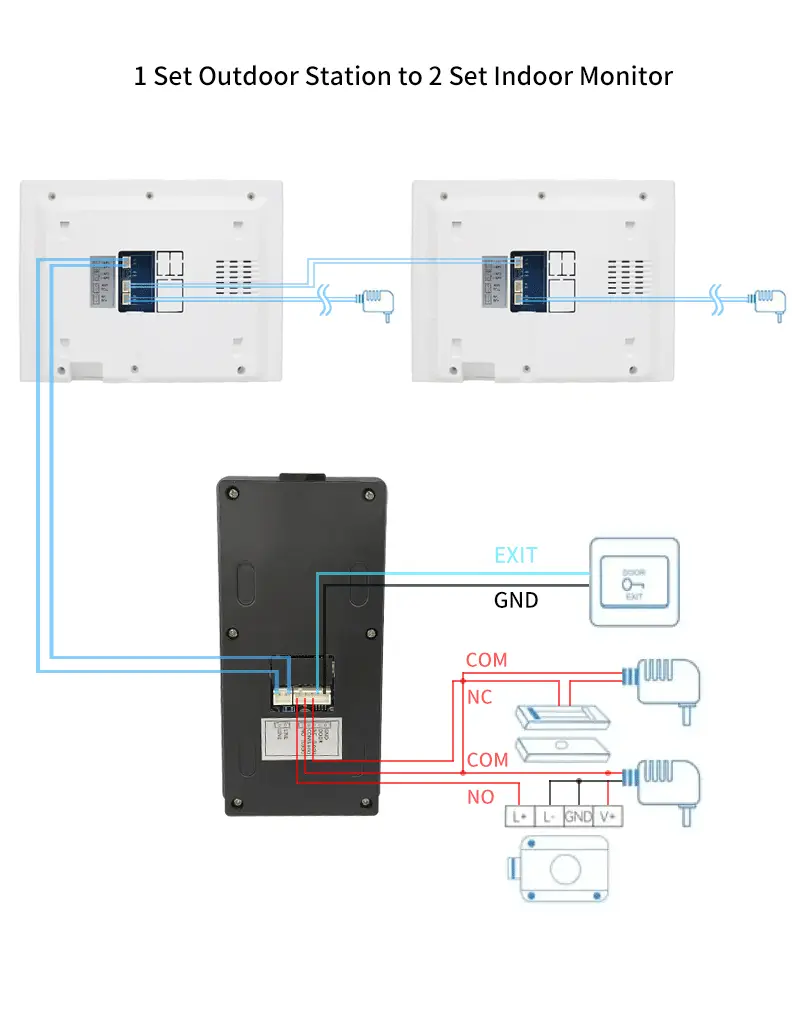
Standard Connec,on Diagram
1 Set Outdoor StaBon to 1 Set Indoor Monitor

Anjielo Smart 2 Wired Video Intercom System 7" IPS LCD Screen RFID Unlock Tuya Smart Wifi Video Doorbell 1080P 33

1 Set Outdoor StaBon to 2 Set Indoor Monitor

Anjielo Smart 2 Wired Video Intercom System 7" IPS LCD Screen RFID Unlock Tuya Smart Wifi Video Doorbell 1080P 34

2 Set Outdoor StaBon to 1 Set Indoor Monitor

Anjielo Smart 2 Wired Video Intercom System 7" IPS LCD Screen RFID Unlock Tuya Smart Wifi Video Doorbell 1080P 35

Access Control Power Connec,on Diagram
1 Set Outdoor StaBon to 1 Set Indoor Monitor

Anjielo Smart 2 Wired Video Intercom System 7" IPS LCD Screen RFID Unlock Tuya Smart Wifi Video Doorbell 1080P 36

1 Set Outdoor StaBon to 2 Set Indoor Monitor

Anjielo Smart 2 Wired Video Intercom System 7" IPS LCD Screen RFID Unlock Tuya Smart Wifi Video Doorbell 1080P 37

2 Set Outdoor StaBon to 1 Set Indoor Monitor

Anjielo Smart 2 Wired Video Intercom System 7" IPS LCD Screen RFID Unlock Tuya Smart Wifi Video Doorbell 1080P 38

Connect the outdoor staBon to the indoor monitor according to the diagram, without disBnguishing posiBve and negaBve poles (non-polar); Secure the connecBon terminals;
Connect to the power supply.

Anjielo Smart 2 Wired Video Intercom System 7" IPS LCD Screen RFID Unlock Tuya Smart Wifi Video Doorbell 1080P 39

Sold out

Wholesale price Ask about availability